Get started with integration of Azure AD Activity Logs to Azure Log Analytics
Recently Microsoft announced the availability of forwarding the Azure AD Activity Logs to Azure Log Analyctis. You can read the announcement in full here: https://techcommunity.microsoft.com/t5/Azure-Active-Directory-Identity/Azure-Active-Directory-Activity-logs-in-Azure-Log-Analytics-now/ba-p/274843 . By bringing thousands (or even millions depending on your organization size and use of Azure AD), of sign-in and audit log events to Log Analytics you can finally use the power of Log Analytics for query, analyze, visualize and alert on your data. In this blog post I will show how to get started and provide some useful tips. Most of this is already well documented in the following Microsoft Docs, but I will provide my own perspective and experience and as well let this blog post be an anchor for future detailed blog posts on the subject of analyzing Azure AD sign-in and audit logs in Log Analytics and Azure Monitor:
- Integrate Azure AD logs with Log Analytics using Azure Monitor: http://aka.ms/AzureADLogAnalytics
- Analyze Azure AD activity logs with Log Analytics, sample queries: https://aka.ms/AzureADLogAnalyticsqueries
- Install and use the Log Analytics views for Azure Active Directory: https://aka.ms/AADLogAnalyticsviews
Set up Diagnostic Settings to Log Analytics
The first action we need to do is to Turn on diagnostics in the Azure AD Portal. You will need to be a Global Administrator or Security Administrator to do this:
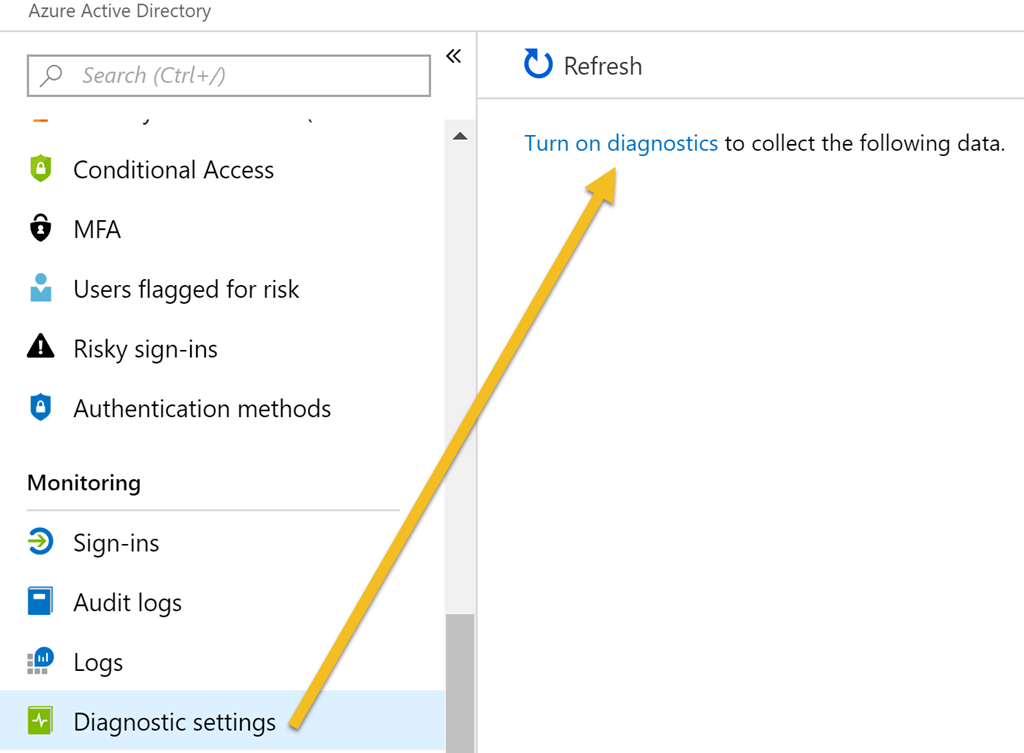
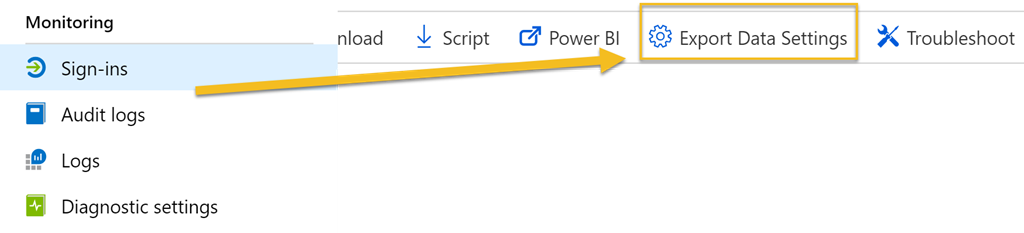
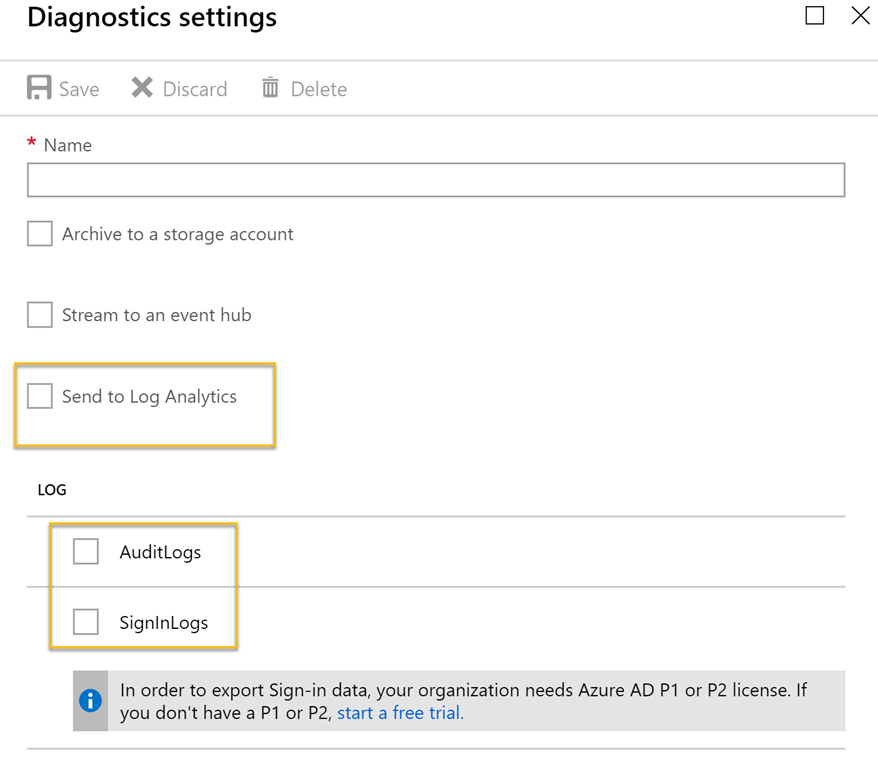
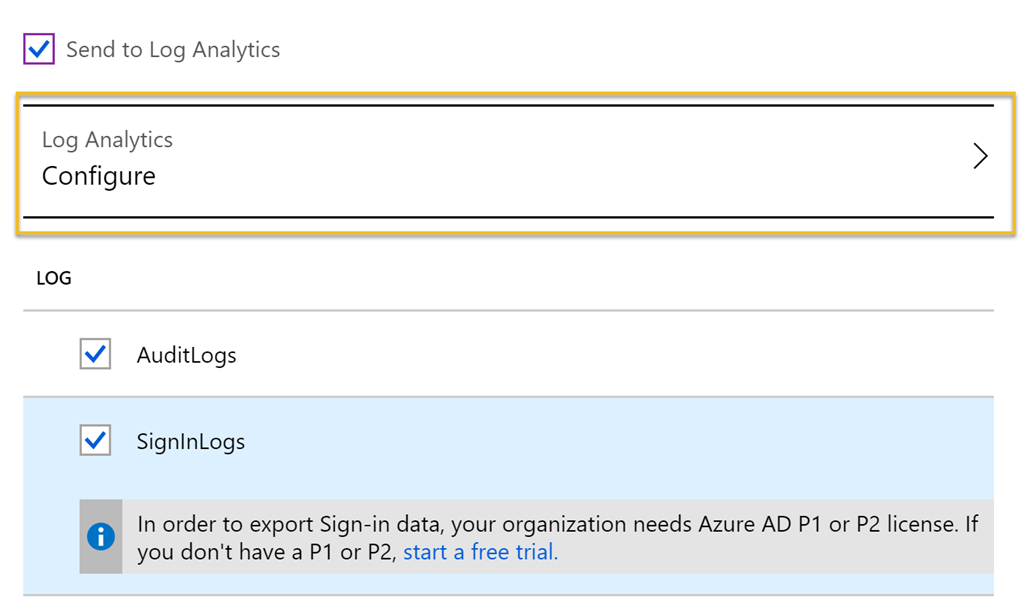
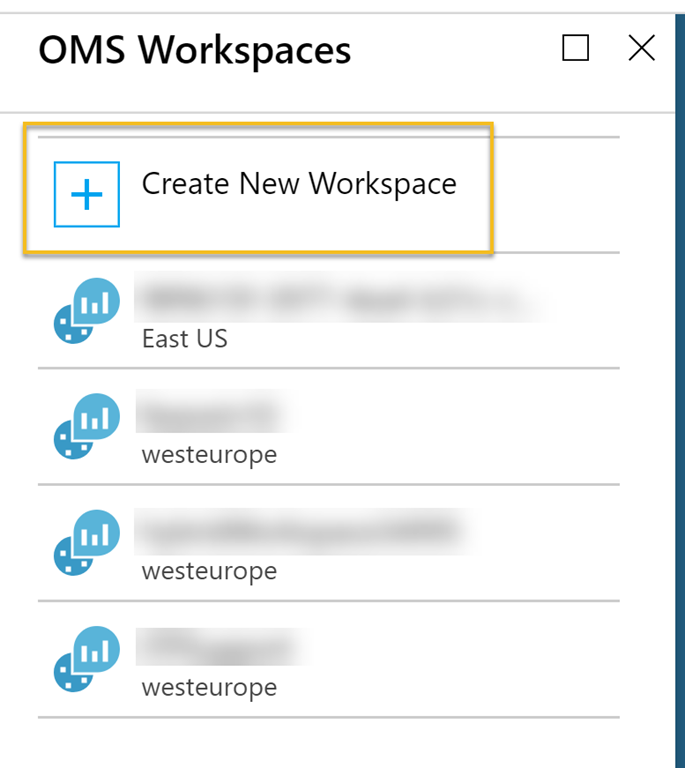
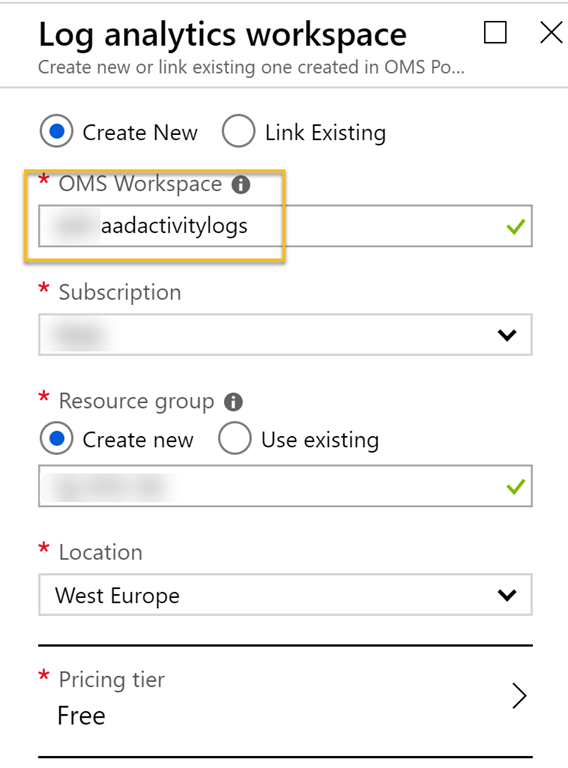
| |
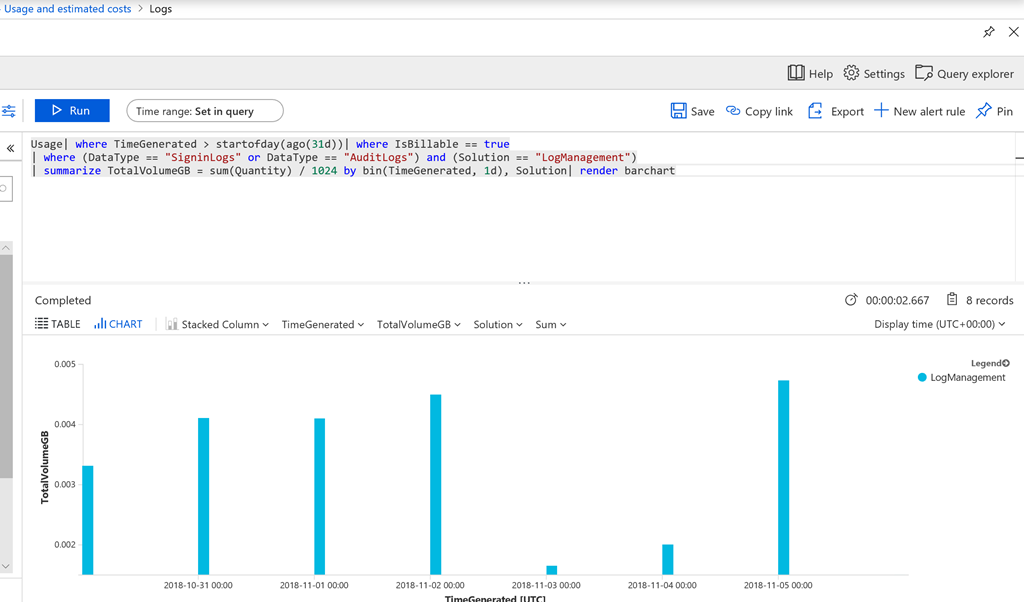
Choosing a pricing tier depends on whether the Subscription was created before April 2, 2018 or not, or whether you have elected to move to a new pricing model. The older pricing model had a choice of free tier, which had a daily cap of 500 MB and a data retention of 7 days. As the diagram above showed, most organizations will be way below the 500 MB daily cap, but a retention of only 7 days will be considered short for most analyzing needs. So under the older pricing model you would consider a standalone per GB model, giving a retention of 1 month by default, but a cost of $2.30 per GB.
The new pricing model after April 2, 2018 has a simplified pricing model. Here the first 5 GB are free and you have a default retention of 31 days. Additional GBs for ingestion are $2.99 per month, and extra retention after the first 31 days is $0.13 per GB per month. Note that this pricing model is on subscription level and affects all your Log Analytics workspaces, so you need to carefully consider any changes to the new pricing model in your subscription.
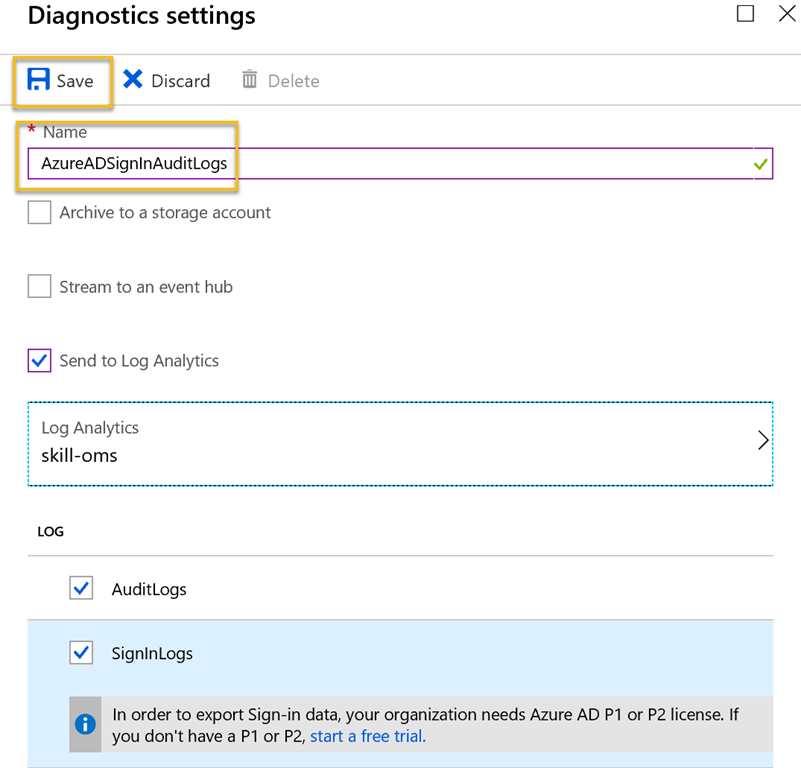
After you have selected/created a Log Analytics workspace, and provided a name for the Diagnostic settings, you are ready to Save:
Start to Analyze Azure AD Activity logs with Log Analytics
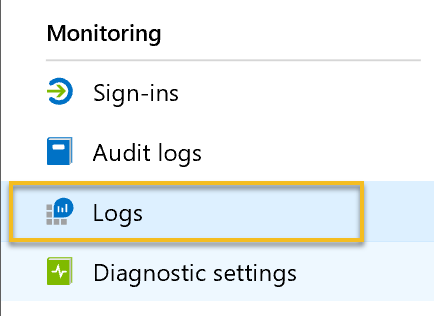
To begin analyze the exported Azure AD Activity Logs with Log Analytics, you can either go to the Log Analytics section in your Azure Portal. You can also access the logs directly from Azure Active Directory from under the Monitoring section, which will take you directly to the configured Log Analytics workspace: